PowerPack 3.0 introduces a completely redesigned PowerPack Dashboard with a new interface and improved plugin management options.
If you update PowerPack and notice something on your website isn't working as expected, you can easily rollback to a previous version that worked correctly.
PowerPack includes a built-in Version Control option that lets you reinstall an earlier version without manually downloading and installing the plugin.
Here’s how to rollback PowerPack to a previous version.
Roll Back PowerPack to a Previous Version#
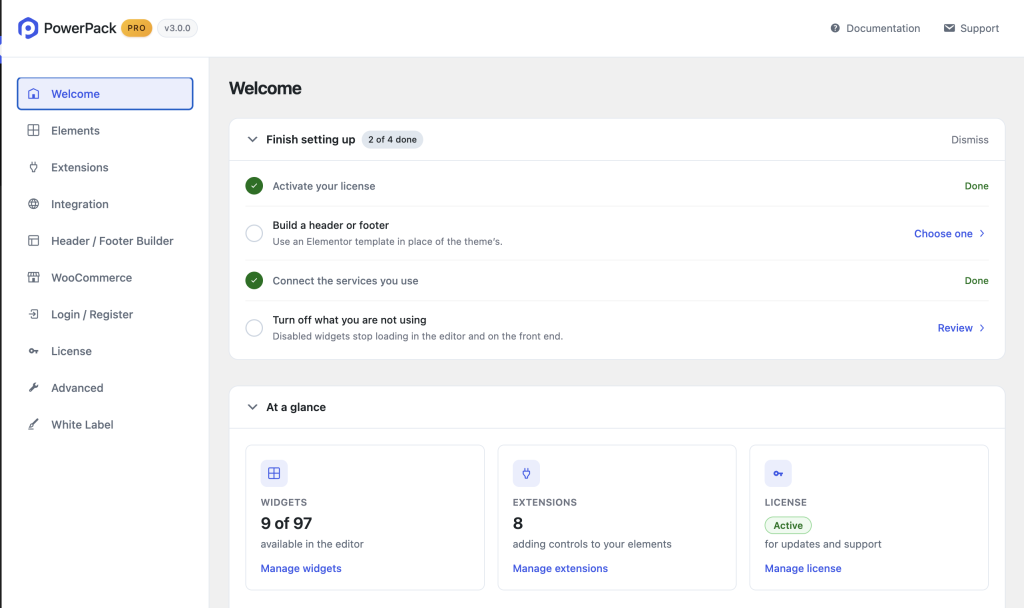
Step 1: Open the PowerPack Dashboard#
After updating to PowerPack 3.0, open the PowerPack Dashboard from your WordPress dashboard.
Step 2: Go to the Advanced Tab#
In the PowerPack Dashboard, go to the Advanced tab. Here, you’ll find the Version Control section.
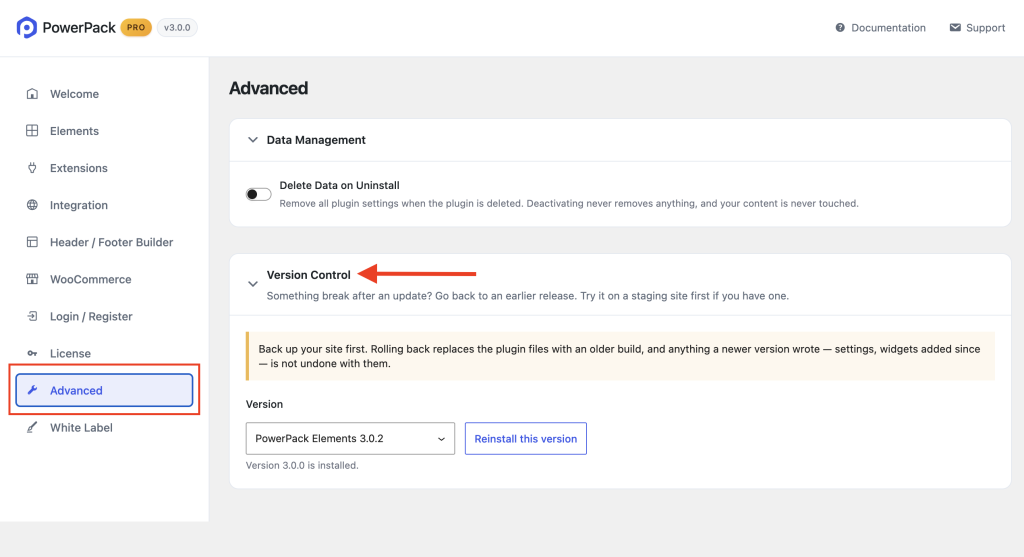
Step 3: Select and Reinstall a Previous Version#
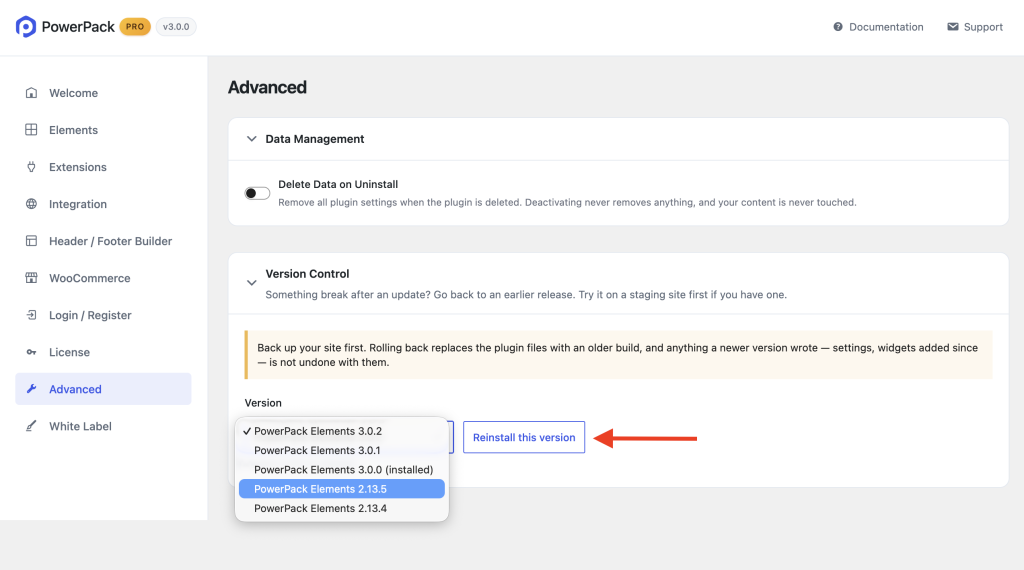
Under Version Control, open the version dropdown menu.
You’ll see the available PowerPack versions that you can install. Select the version you were using previously or any other version you want to rollback to.
Once you have selected the version, click Reinstall this version. PowerPack will automatically reinstall the selected version on your website.
That’s it! Your PowerPack plugin has now been rolled back to the selected version.
PowerPack’s built-in Version Control makes it easy to switch back to an earlier version when needed. You don’t have to manually search for an old plugin ZIP file or go through the WordPress plugin installation process.
Open PowerPack Dashboard >> Advanced >> Version Control, select the version you want to use, and click Reinstall this version.