We’ve completely redesigned the PowerPack Addons dashboard to make managing your Elementor website simpler than ever.
Instead of navigating through multiple settings pages, the new dashboard brings everything together in one clean, organized space. Every essential setting, tool, and resource is now easier to find, helping you get started faster and manage your website more efficiently.
It also adapts to the admin color scheme you’ve selected in your WordPress profile, so it feels more at home inside your WordPress dashboard.
But this isn’t simply a visual redesign.
A New Dashboard Experience
The new PowerPack dashboard has been rebuilt as a modern React application that communicates with a REST API.
That technical change makes a noticeable difference in how the dashboard works.
Instead of relying on traditional PHP forms that reload the entire page after saving, the new dashboard can update information without refreshing the screen. It can also interact with your website and show relevant information directly inside the dashboard.
For example, it can check:
- Which PowerPack widgets are actually being used on your website
- Which widgets aren’t being used
- Your license status
- Connected integrations and their settings
This gives the dashboard a much better understanding of your website and enables it to provide more useful information rather than simply displaying a collection of settings.
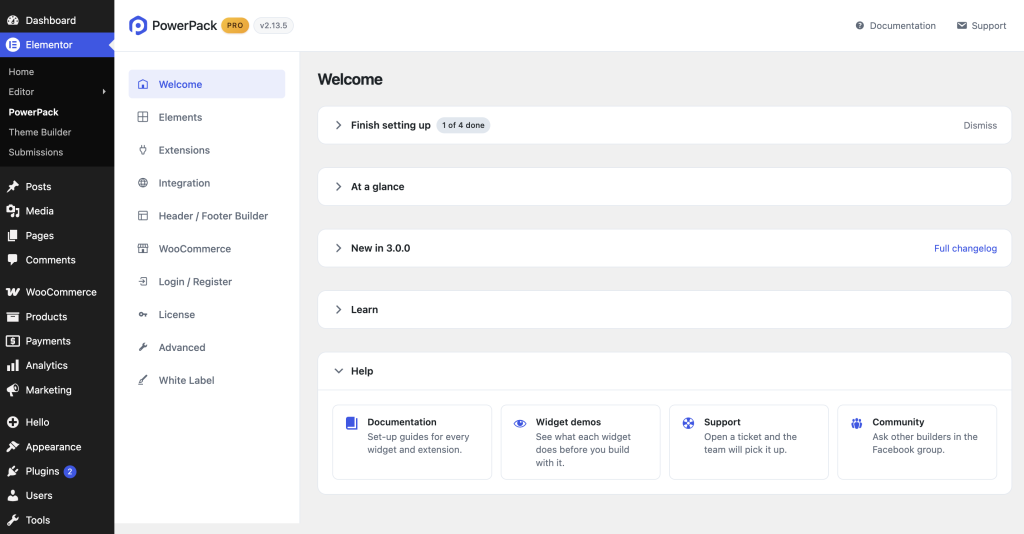
A New Welcome Screen Built Around Your Website
The new Welcome tab is more than an introduction to PowerPack.
It’s designed to help you understand what still needs to be configured on your website and give you quick access to the next step.
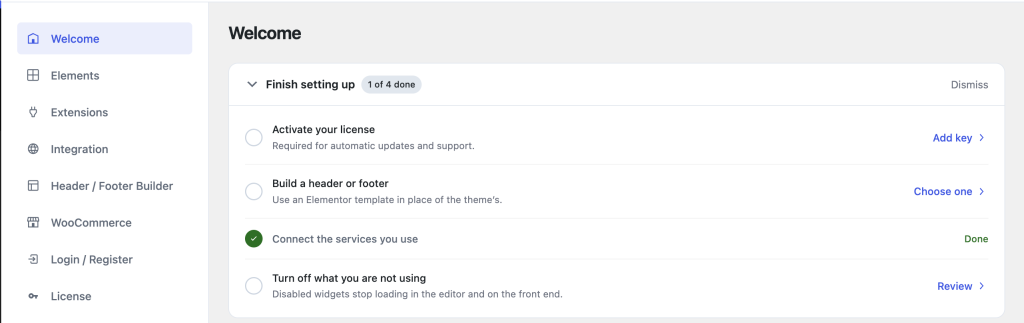
Finish Setting Up
The setup checklist highlights four important tasks:
- Activate your license: Required for automatic updates and support.
- Build a header or footer: Use an Elementor template in place of your theme’s header or footer.
- Connect the services you use: Configure services such as maps, reviews, calendars, and feeds.
- Turn off what you’re not using: Disable unused widgets to reduce unnecessary assets.
The checklist automatically tracks completed tasks and shows how much is left to finish. Once you’re done, you can dismiss it from the dashboard.
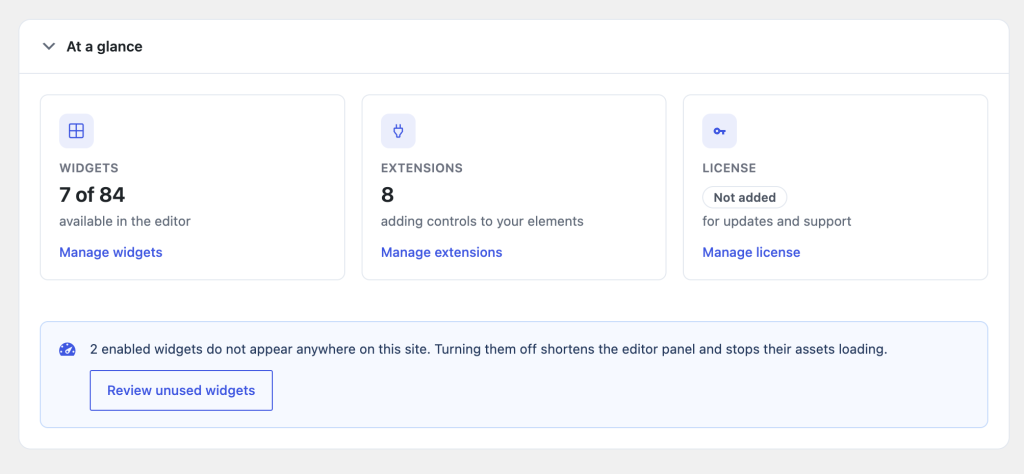
At a Glance
The At a Glance section gives you a quick overview of your PowerPack setup. You can see:
- How many widgets are available in the Elementor editor
- How many extensions are enabled
- Your current license status
Each card includes a direct link to the relevant settings, so you can move from information to action without having to search through the dashboard.
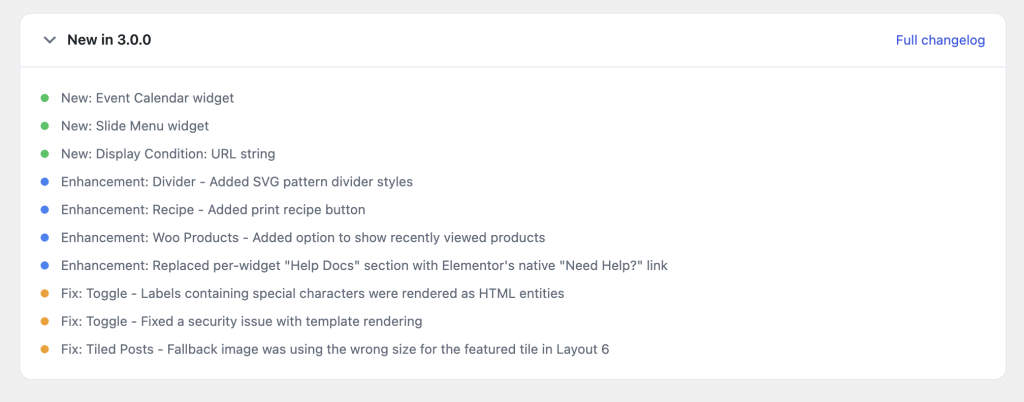
New in (version number)
The New in section keeps you up to date with the latest PowerPack release.
It highlights new features, enhancements, and fixes included in your installed version, with a link to the complete changelog for the full list of changes.
Learn
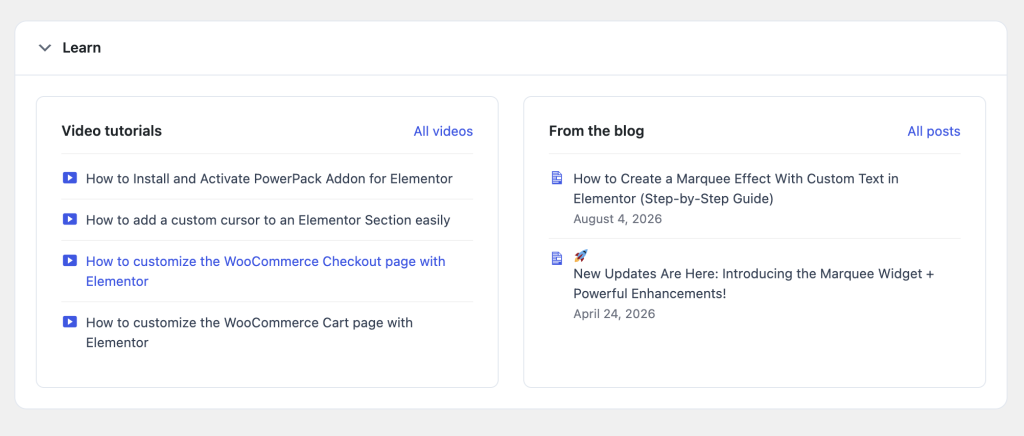
The dashboard also brings learning resources directly into your workflow.
The Learn section gives you quick access to video tutorials and recent blog posts, making it easier to discover new features and learn how to use PowerPack.
Help
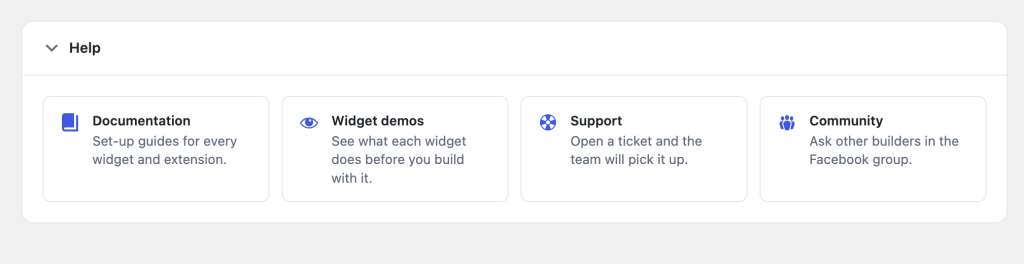
Need a little extra help?
The Help section brings together the resources you need, including:
- Documentation
- Widget demos
- Support
- Community
A Smarter Way to Manage Widgets
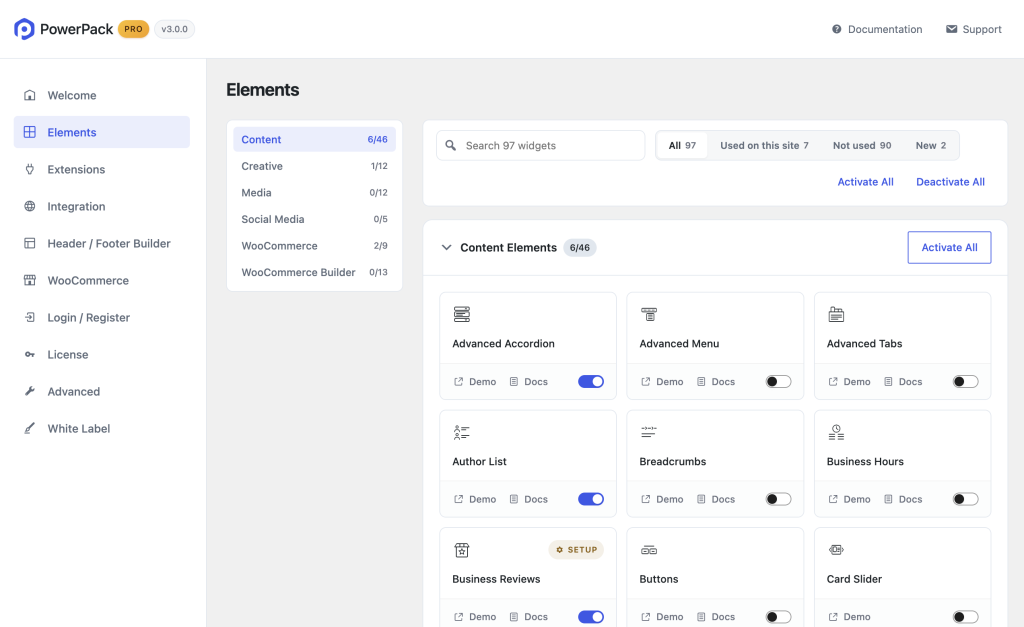
The Elements tab is one of the biggest changes in the new dashboard.
PowerPack includes 70+ Elementor widgets, and managing a growing widget library shouldn’t mean scrolling through one massive list.
The new Elements screen gives you a much more organized way to find and manage them.
Search Your Widgets
Use the search bar to quickly find any widget by name.
Instead of browsing through the entire library, start typing, and PowerPack will narrow down the list for you.
Browse by Category
Widgets are now organized into categories, including:
- Content Elements
- Creative Elements
- Media Elements
- Social Media Elements
- WooCommerce Elements
The category navigation makes it easier to jump directly to the type of widget you’re looking for.
See What’s Actually Being Used
One of the most useful additions is the “Used on this site” and “Not used” filters.
PowerPack can now scan your website and identify which widgets are actually in use. This makes it much easier to review your widget library and find widgets that are enabled but aren’t being used anywhere on your site.
Manage Widgets Quickly
Every widget has its own toggle, allowing you to turn it on or off without opening another settings page.
You can also use Activate All and Deactivate All actions to manage widgets in bulk, either across the entire list or within individual categories.
Demos and Documentation at Your Fingertips
Each widget also provides quick access to its Demo and Docs.
Want to see the widget in action? Open the demo.
Need help setting it up? Open the documentation.
You don’t have to leave the Elements screen to find the information you need.
Built-In Loading Experience
The widget catalog also uses a loading skeleton while the content is being loaded.
Instead of showing an empty screen and suddenly filling it with widgets, the interface maintains its structure while the catalog loads, making the experience feel smoother and more responsive.
Extensions, Integrations, and More
The rest of the dashboard follows the same organized approach, with dedicated sections accessible from the sidebar:
Welcome, Elements, Extensions, Integration, Header / Footer Builder, WooCommerce, Login / Register, License, Advanced, and White Label.
Each section focuses on a specific part of PowerPack, keeping related settings together and making the dashboard easier to navigate.
Extensions
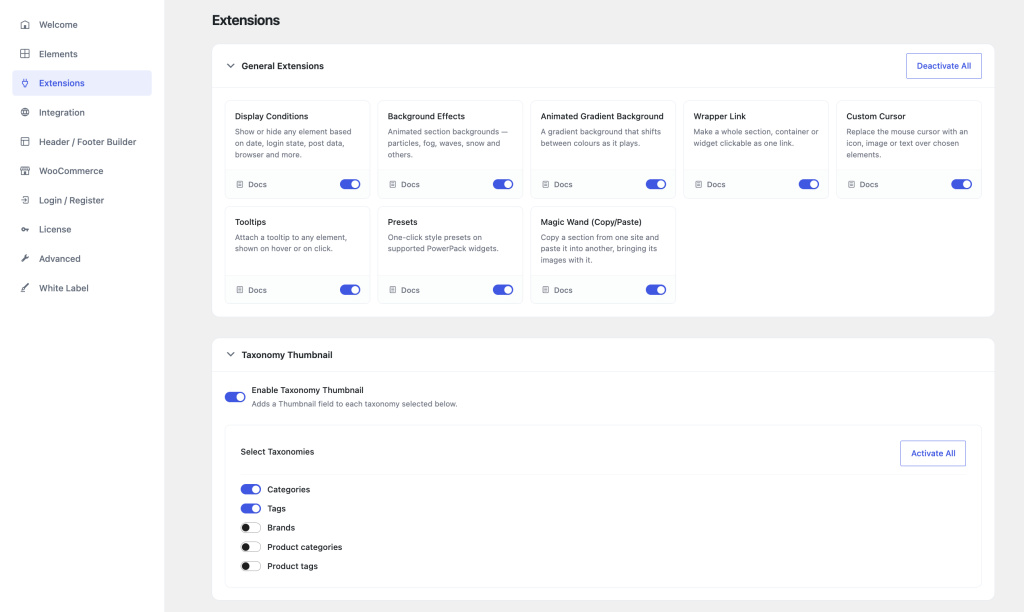
The Extensions tab brings PowerPack’s additional functionality together in one place.
You can manage extensions such as Display Conditions, Background Effects, Animated Gradient Background, Wrapper Link, Custom Cursor, Tooltips, Presets, Magic Wand, and Taxonomy Thumbnail.
Each extension includes a short description, a direct documentation link, and its own turn control on/off.
Bulk activation and deactivation options also make it easier to manage multiple extensions at once.
Integration
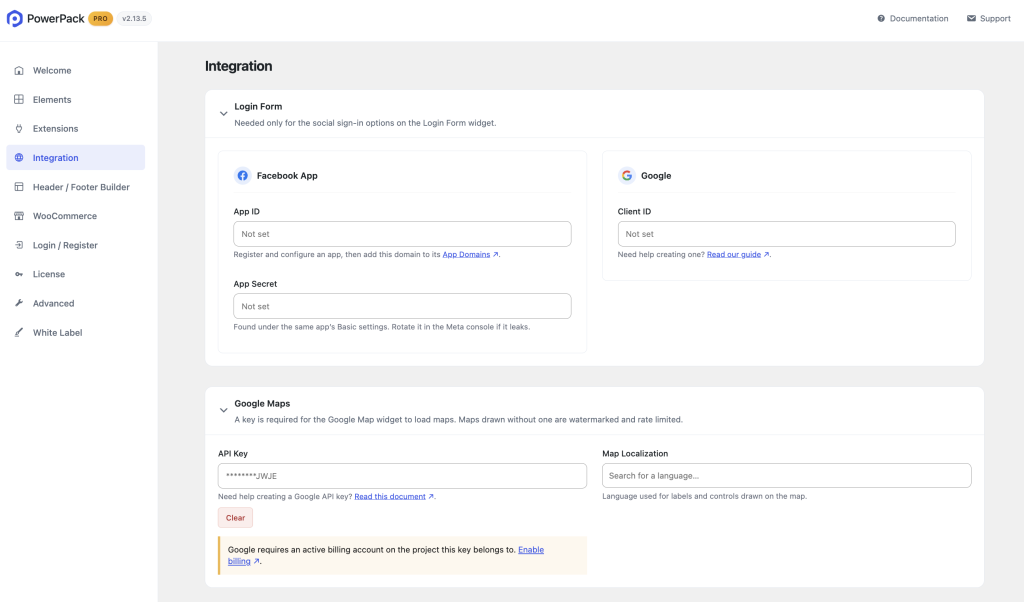
The Integration tab brings third-party service settings together in one place. You can configure integrations for:
- Facebook and Google Login
- Google Maps
- Google Places
- Yelp
- Event Calendar
- Instagram Feed
- Video Gallery
- reCAPTCHA v2 and v3
- CSV Upload
The updated interface makes API and authentication settings easier to understand, with supporting documentation available alongside the relevant fields.
Header / Footer Builder
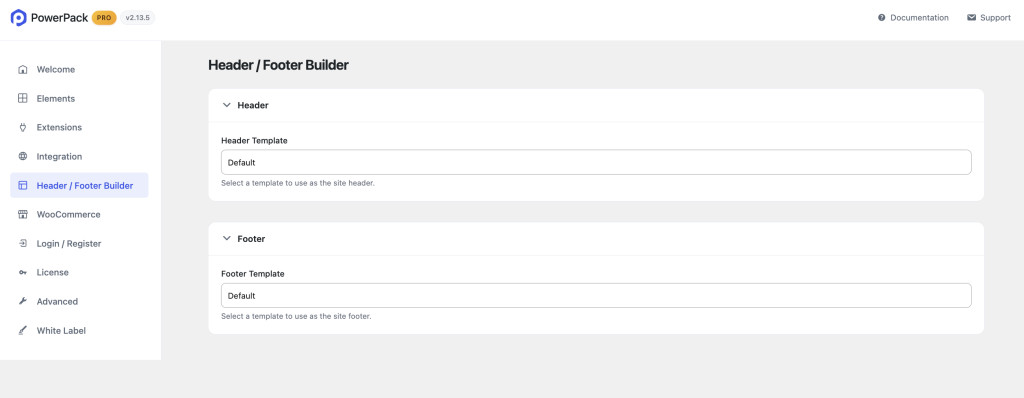
The Header / Footer Builder section gives you a dedicated place to assign Elementor templates as your site’s header and footer.
The template selectors are searchable, making it easier to find the right template on websites with a large collection of Elementor templates.
WooCommerce
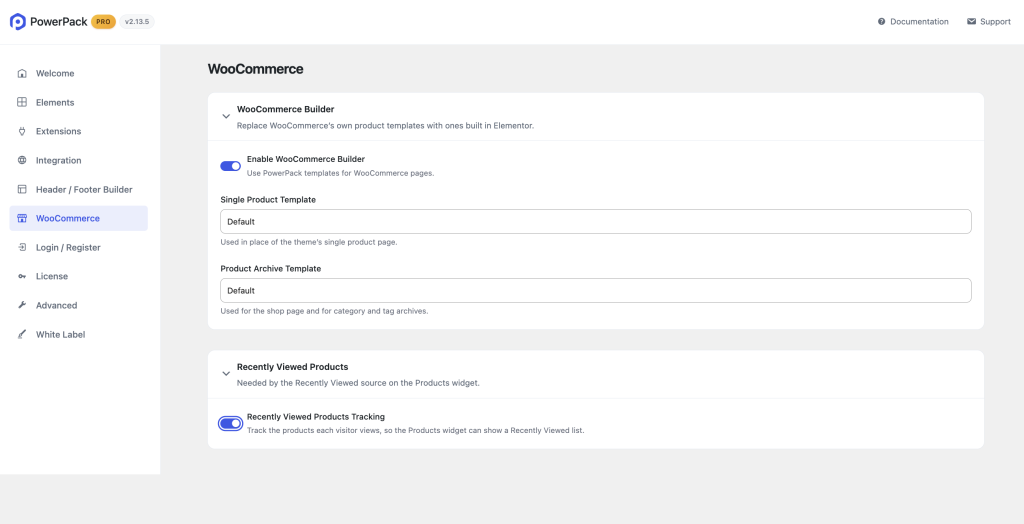
The WooCommerce tab brings together store-specific settings.
You can enable the WooCommerce Builder to use PowerPack templates for WooCommerce pages and enable Recently Viewed Products Tracking for the Products widget.
The WooCommerce template options are also hidden from the interface when WooCommerce isn’t active, keeping the dashboard focused on the settings that apply to your website.
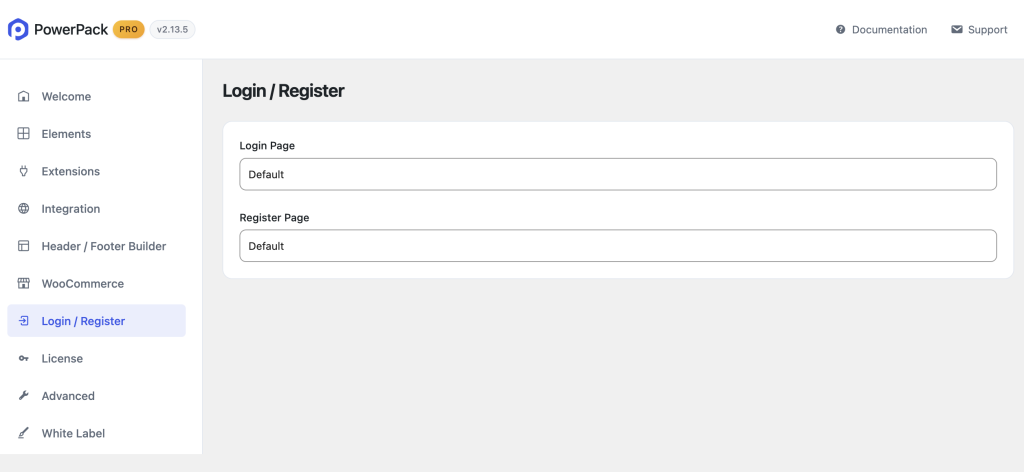
Login / Register
The Login / Register section lets you assign custom Elementor pages for your site’s login and registration experiences.
Choose the appropriate page from the searchable selectors and manage both authentication pages from one place.
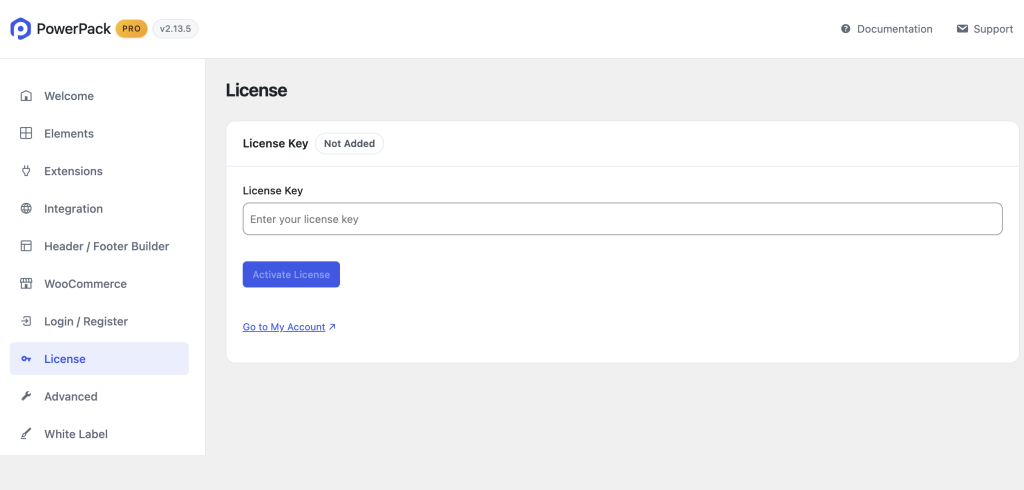
License
The License tab provides a dedicated place to enter and activate your PowerPack license key.
It also displays your current license status and provides a direct link to your PowerPack account.
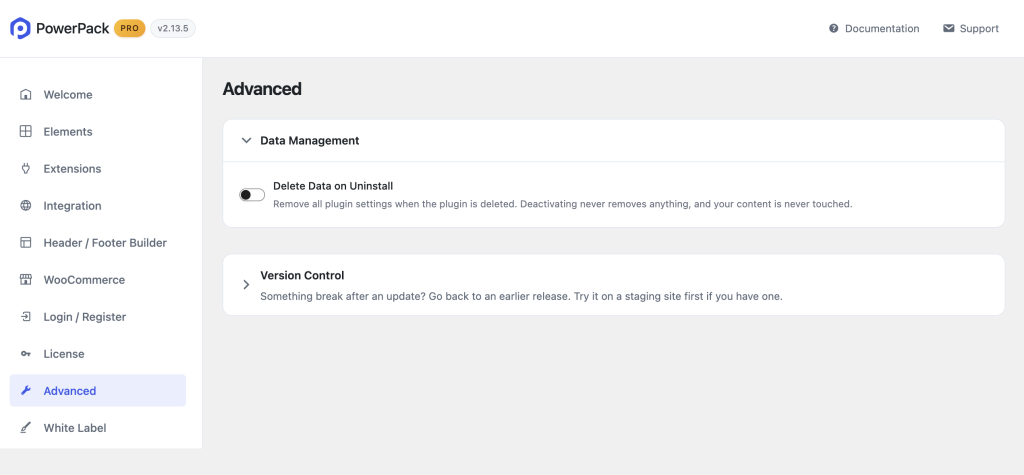
Advanced
The Advanced tab includes data management settings, including Delete Data on Uninstall.
When enabled, PowerPack removes its stored settings upon uninstallation. Deactivating the plugin does not remove your settings or website content.
In addition to data management, it now includes a Version Control option that gives you more flexibility when working with plugin updates.
Version Control
The new Version Control section gives you a simple way to go back to an earlier version of PowerPack if something doesn’t work as expected after an update.
If an update causes an issue with your website or existing setup, you can use Version Control to return to an earlier release instead of manually finding and installing an older plugin version.
The section is available under Advanced >> Version Control and is designed specifically for troubleshooting an update or restoring a previously working version.
For added safety, we recommend testing a rollback on a staging site first, if you have one available.
This gives you more control over PowerPack updates and makes it easier to troubleshoot compatibility issues without relying on a manual downgrade process.
Data Management
The Data Management section includes the Delete Data on Uninstall option.
When enabled, PowerPack removes its stored plugin settings upon complete uninstallation of the plugin. Deactivating PowerPack does not remove your settings, and your website content remains untouched.
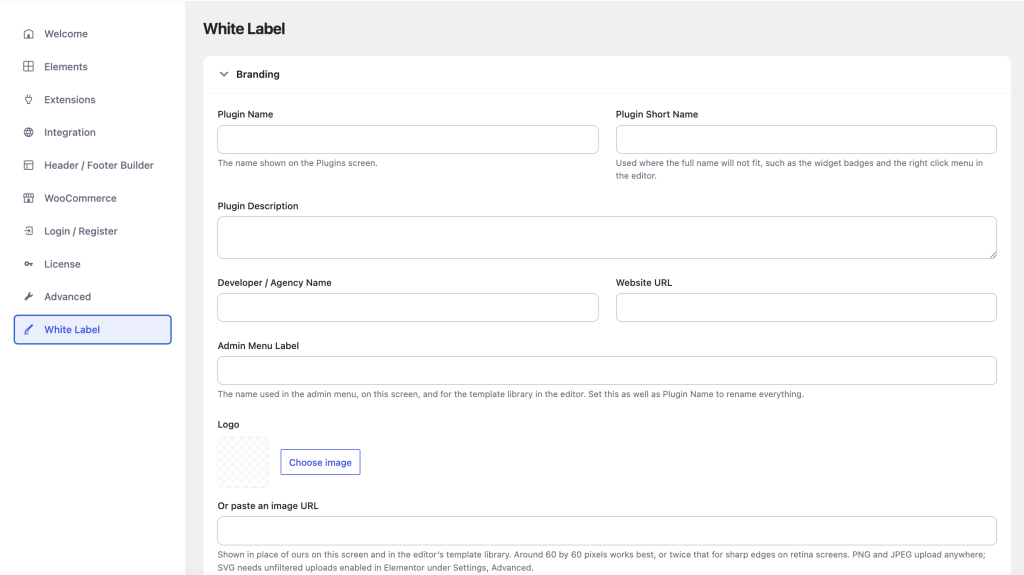
White Label
The White Label tab gives agencies and developers more control over the PowerPack experience they deliver to clients.
You can customize:
- Plugin Name
- Plugin Short Name
- Plugin Description
- Developer / Agency Name
- Website URL
- Admin Label
- Support Link
- Documentation Link
This lets you replace the default PowerPack branding and resources with your own agency or business details.
Ready To Explore the New PowerPack Dashboard?
With the new dashboard, managing PowerPack is simpler from the start. Everything is organized in one place, so you can find what you need, manage your setup, and get back to building faster.
Update to the latest version of PowerPack Addons for Elementor and experience a cleaner, faster, and more intuitive way to manage your widgets, extensions, integrations, and settings, all from one place.
