PowerPack Addons for Elementor include more than 80 widgets that help you build professional websites with ease. As your website grows, it can become difficult to remember which widgets are actually being used across your pages.
To make this easier, PowerPack includes a built-in Used Widgets filter. This feature lets you quickly identify all PowerPack widgets currently used on your website, making it easier to manage your widgets and review your setup.
Since this functionality is built into PowerPack, you don’t need to install any additional plugins or extensions.
In this guide, you’ll learn how to find the PowerPack widgets used on your website.
How To Check Which PowerPack Widgets Are Used on Your Elementor Website#
The Used Widgets filter gives you a quick overview of the widgets currently in use. Instead of scrolling through the full list of PowerPack widgets, you can display only those used on your website.
This can be helpful when you want to:
- Check which PowerPack widgets are active on your website.
- Review widgets before making configuration changes.
- Identify unused widgets while managing your Elementor setup.
- Quickly locate widgets without searching through the entire list.
Step 1: Open PowerPack Settings#
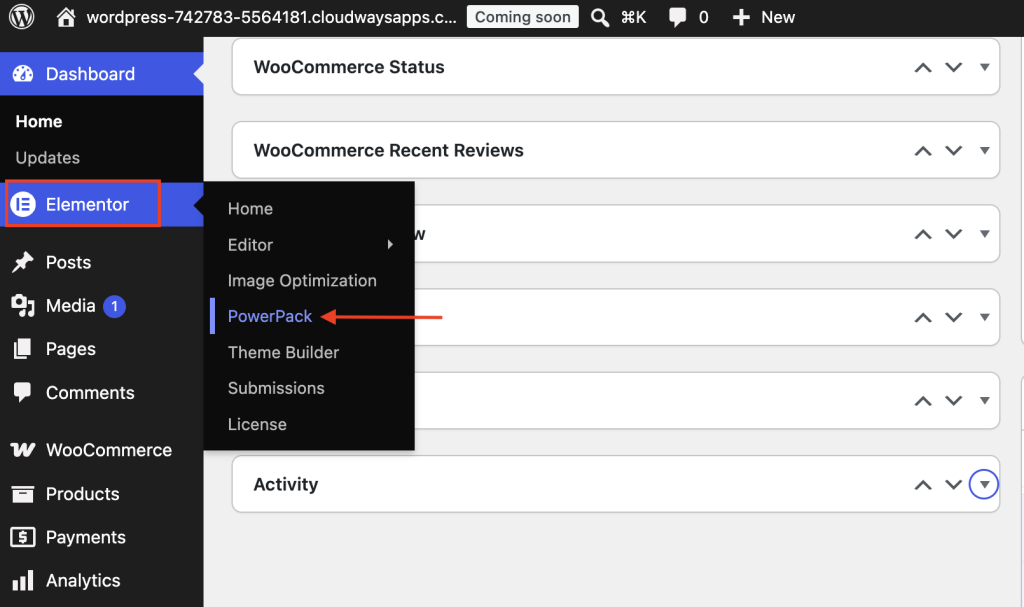
Log in to your WordPress dashboard. From the left sidebar, navigate to Elementor >> PowerPack. This opens the PowerPack settings page where you can manage all available widgets and integrations.
Step 2: Open the Elements Tab#
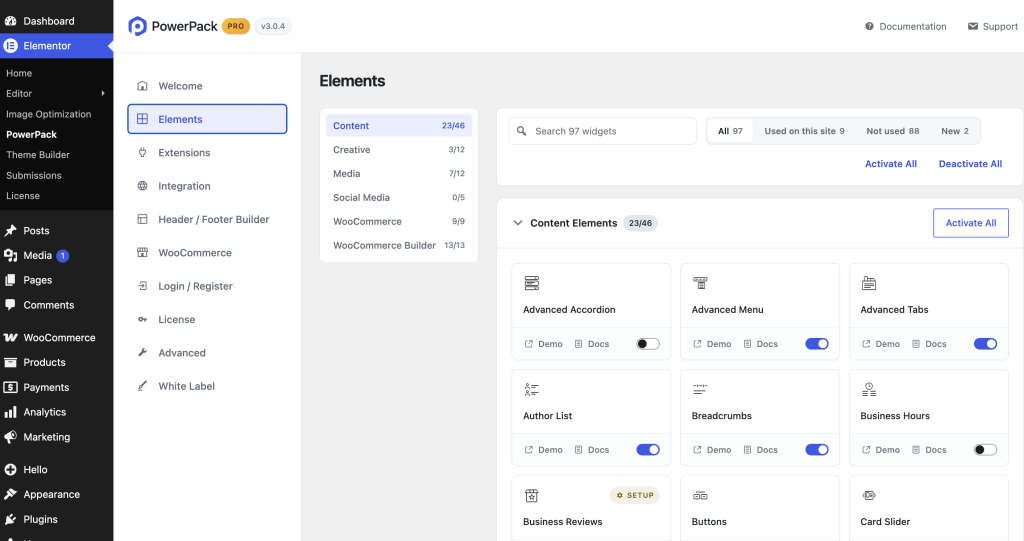
On the PowerPack settings page, click the Elements tab.
Here, you’ll find a complete list of all PowerPack widgets available on your website. Each widget includes its own toggle, allowing you to enable or disable it whenever needed.
Step 3: Filter Used Widgets#
On the right side of the page, select Used on this site. As soon as you select this option, PowerPack automatically refreshes the list and displays only the widgets currently being used on your website.
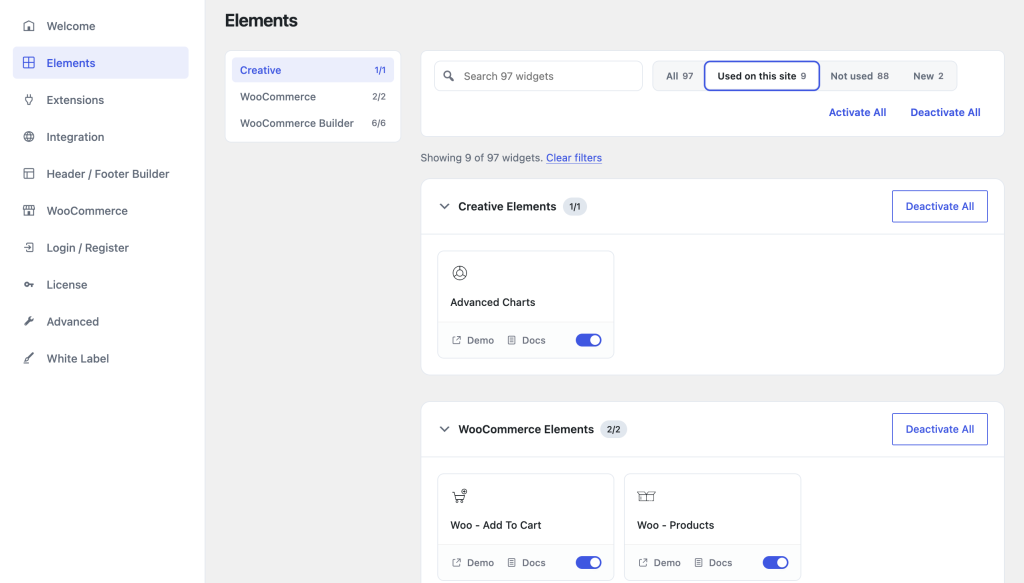
This makes it much easier to identify the widgets your pages rely on without having to manually check every Elementor page.
Step 4: Manage the Displayed Widgets#
After filtering the list, you can manage the displayed widgets directly from the same screen.
If you want to enable all listed widgets at once, click the Activate All button available at the top of the page. If you only want to enable a specific widget, use the toggle switch next to it.
After making any changes, scroll to the bottom of the page. Click Save Changes to apply your updates. Your settings won't be applied until you save them.
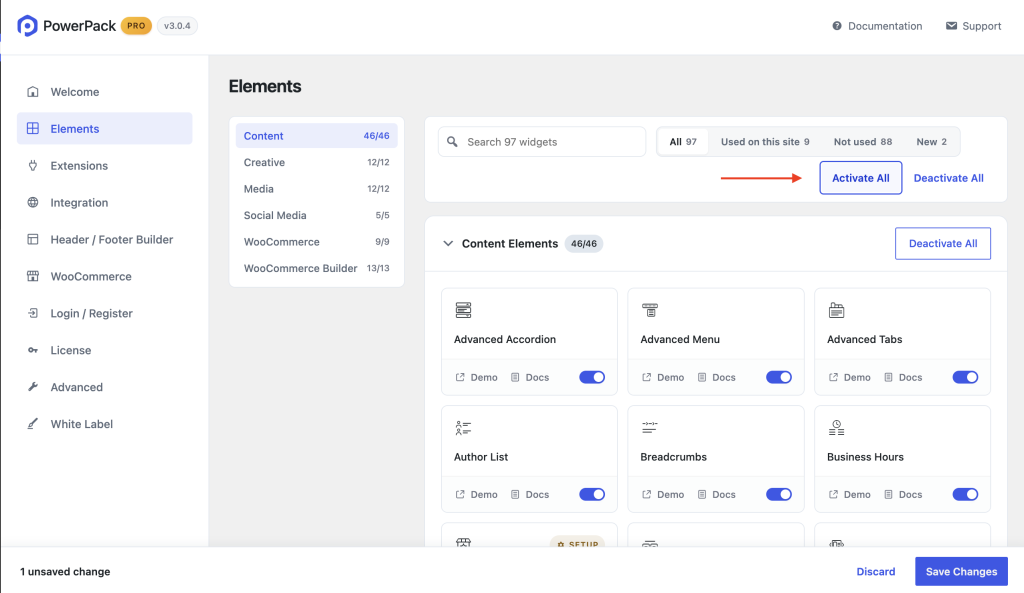
This gives you the flexibility to manage widgets individually instead of changing the entire list.
Wrapping Up!#
PowerPack’s Used Widgets filter makes widget management much easier, especially on websites with multiple pages and many Elementor widgets. Instead of reviewing every page manually, you can instantly see which PowerPack widgets are currently being used and manage them from a single location.
Since this feature is built directly into PowerPack Addons for Elementor, you can quickly review your active widgets, make changes when needed, and keep your Elementor setup organized, all without installing any additional plugins.