One way to keep sales flowing is to ensure your top-rated products are easily visible to your audience. WooCommerce helps us here by sorting products into categories like Top Rated, Featured, On Sale, Best Selling, etc. The best way to use these categories is to use shortcodes or widgets to place products from these categories on your page/post.
Here we will guide you on how to display Top Rated Products using Woo - Products Widget of PowerPack Add-ons for Elementor.
Required Plugins:
Step 1: Create a Single Product Template#
First, you need a Single Product template where you can add the top-rated products section.
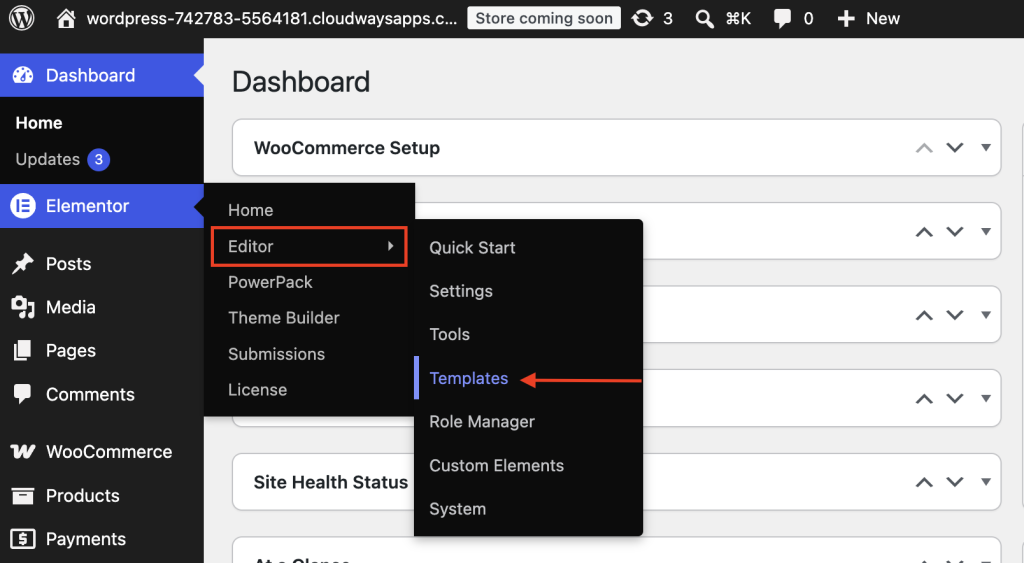
From your WordPress dashboard, go to Elementor >> Editor >> Templates and click Add New Template. If you already have a Single Product template, you can open it and skip this step.
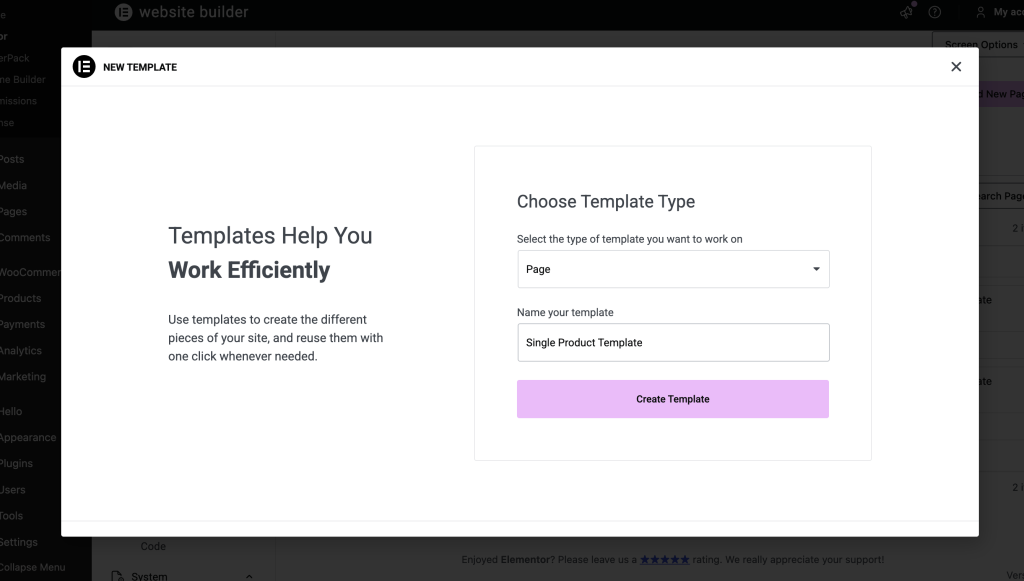
When creating a new template, select the appropriate template type for your WooCommerce product page and give it a descriptive name, such as Single Product Page.
Click Create Template to open the template in the Elementor editor.
Set Up the Page Layout#
Once the Elementor editor opens, you can set up the layout for your Single Product page.
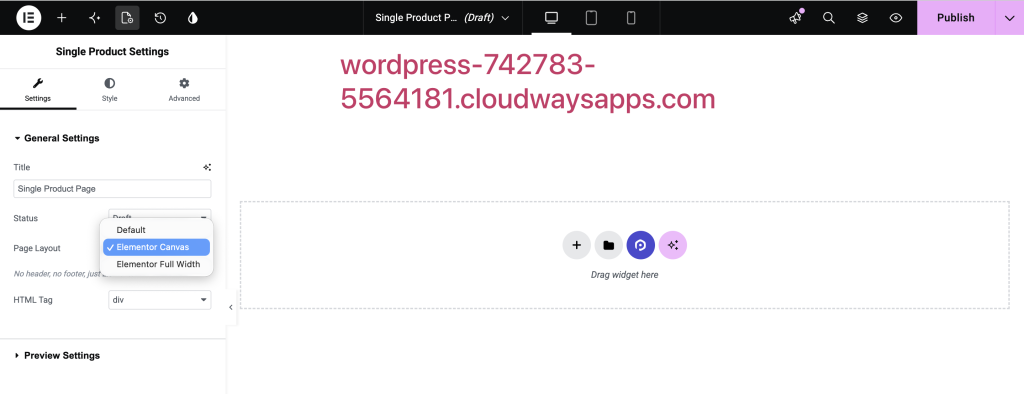
If you want to change the default page layout, click the Settings icon at the bottom-left corner of the Elementor panel and choose the layout that best fits your website. Depending on your theme and design, you can use a Canvas layout or another suitable layout.
Once you're done, publish the template and return to your WordPress dashboard.
Step 2: Enable the PowerPack WooCommerce Builder#
PowerPack Addons for Elementor includes WooCommerce-specific widgets that make it easier to create and customize your product pages. Before adding the Woo - Products widget, make sure the WooCommerce Builder is enabled in PowerPack.
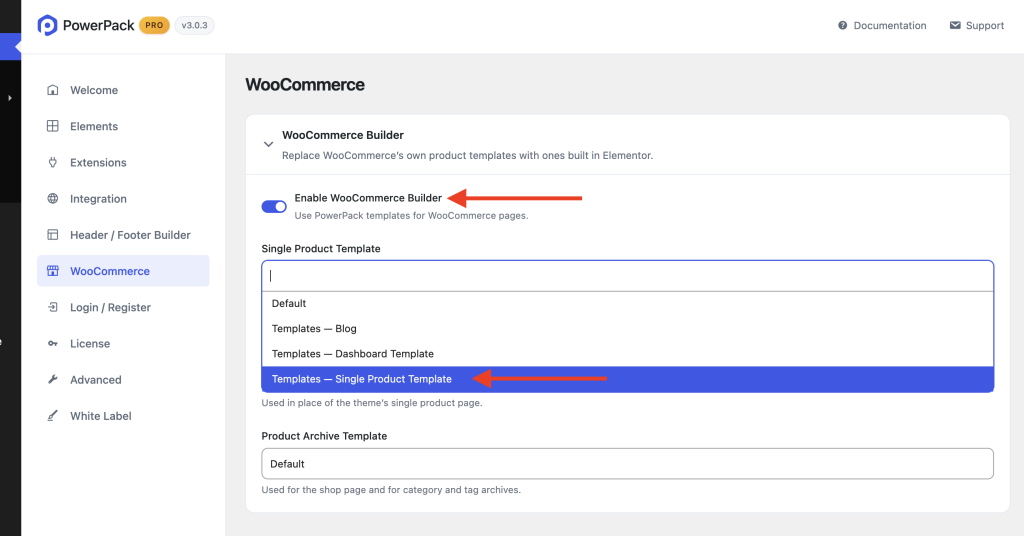
Open your Elementor settings and locate the WooCommerce Builder option. Turn it on to enable the WooCommerce Builder features.
Once enabled, you can configure the WooCommerce templates and use PowerPack's WooCommerce widgets.
Since we're creating a Single Product page, select the template you created under the Single Page Template option. You can then click Edit to open the template in Elementor and continue designing your product page.
Step 3: Design Your Single Product Page#
Now you can start designing your Single Product page.
You can either build the layout from scratch or import a pre-designed template and customize it to match your website. Add the product-related sections and widgets you want to display, such as:
- Product image
- Product title
- Product price
- Product description
- Add to Cart button
- Product ratings
- Product meta
- Additional product information
Once the main product information is in place, decide where you want to display the Top Rated Products section. For example, you can place it below the main product details or near the bottom of the page.
Step 4: Add the Woo - Products Widget#
Now, let's add the PowerPack Woo - Products widget to your Single Product template.
In the Elementor widget panel, search for Woo - Products under the PowerPack widgets. Drag and drop the widget into the section where you want your top-rated products to appear. Once added, select the widget to open its settings.
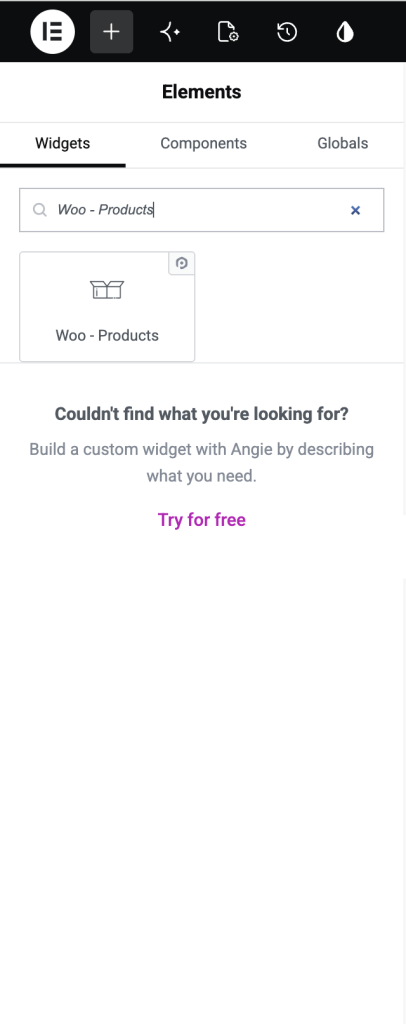
By default, the widget may display products based on its existing query settings. We'll change these settings to display only top-rated products.
Step 5: Display Only Top Rated Products#
With the Woo - Products widget selected, open its Query settings.
Look for the Filter By option and select Top Rated. The widget will now automatically fetch products based on their ratings and display your top-rated WooCommerce products.
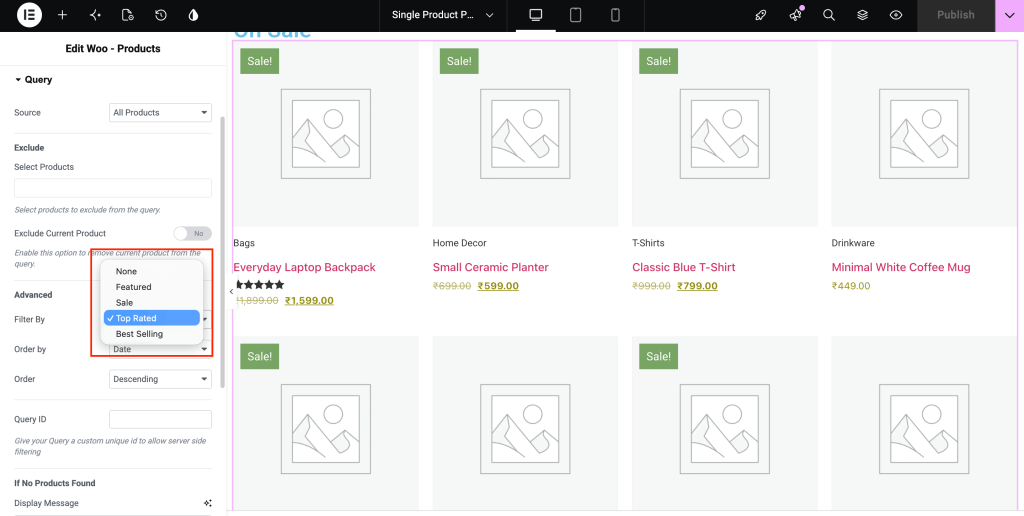
This saves you from manually selecting individual products. As your product ratings change, the product list can update accordingly.
Step 6: Customize the Product Display#
Once you've configured the query, you can customize how the products appear on your page.
Use the widget's available Content and Style options to adjust the product layout and appearance. You can customize elements such as the number of columns, spacing, typography, colors, buttons, and other product details.
Make these adjustments to ensure the Top Rated Products section fits naturally with the rest of your WooCommerce store.
Step 7: Publish the Page#
Once you're happy with the layout and styling, click Update or Publish in Elementor.
Your Single Product page will now include a Top Rated Products section, allowing visitors to discover highly rated products while browsing your store.
Wrapping Up!#
Displaying top-rated products is an easy way to add social proof to your WooCommerce store and help shoppers discover products that other customers have rated highly.
With the Woo - Products widget, you can automatically filter your product listing by Top Rated and customize its appearance without manually adding individual products.
Add the widget to your Single Product template, configure the query, customize the design, and you're ready to showcase your best-rated products.