Woo - My Account Widget helps you create a fully customized WooCommerce My Account page using Elementor. Instead of using the default WooCommerce account page layout, you can design an account area that matches your website’s branding and provides a better experience for your customers.
Using this widget, you can control which account sections are visible, customize the layout, and style every part of the page, including navigation tabs, order tables, forms, buttons, and notices. All of this can be done visually without writing a single line of code.
Let’s explore the widget and its settings in detail.
Getting Started: Using the My Account Widget#
Follow these steps to add the My Account Widget to your page:
- Open the page where you want to add the My Account widget in Elementor.
- In the Elementor widgets panel, search for “My Account”.
- Drag and drop the Woo - My Account Widget onto your page.
- Once the widget is added, you’ll see two main tabs in the left panel:
- Content
- Style
The Content tab helps you control what is displayed on the My Account page, while the Style tab allows you to customize its appearance.
Content Tab of the Woo - My Account Widget#
Content tab includes the following sections:
- Preview
- Tabs
These settings let you control how the My Account page is displayed in the editor and which account sections are available to your customers.
Preview#
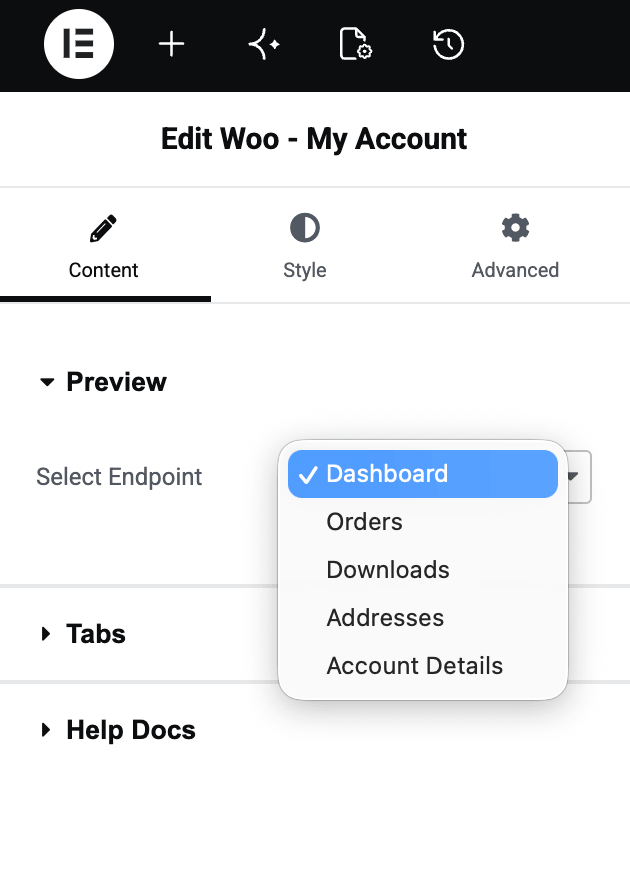
Preview section is designed to make customization easier while working in Elementor.
Since the My Account page contains multiple sections such as Orders, Downloads, and Account Details, it can be difficult to style each section individually. The Preview option solves this problem by allowing you to instantly switch between different account endpoints directly within the Elementor editor.
Available preview options include:
- Dashboard
- Orders
- Downloads
- Addresses
- Account Details
Tabs#
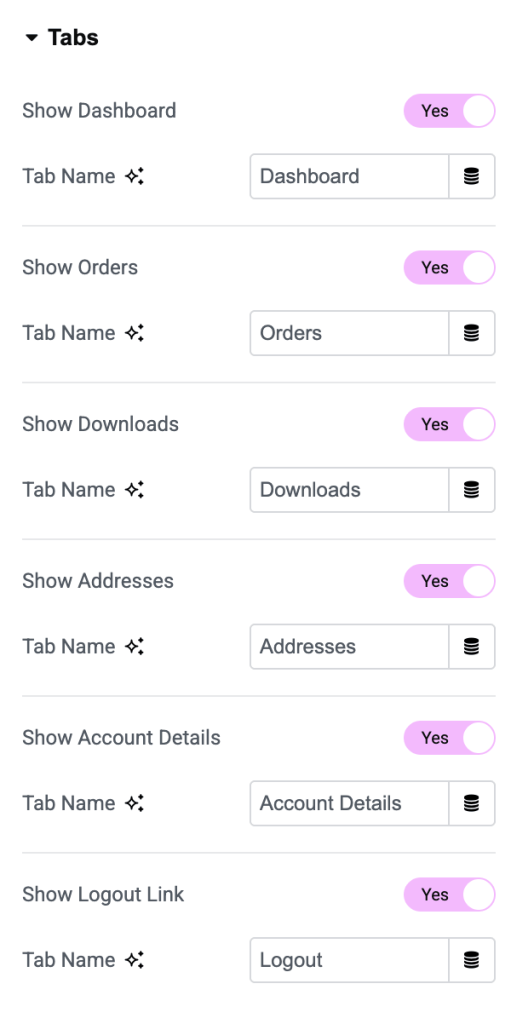
Tabs section allows you to decide which navigation tabs should be displayed on the My Account page.
WooCommerce adds several account-related tabs by default, but not every store needs them all. Using this section, you can easily show or hide individual tabs based on your business requirements.
You can control the visibility of:
- Dashboard
- Orders
- Downloads
- Addresses
- Account Details
- Logout
For instance, if your store doesn’t offer downloadable products, you can hide the Downloads tab to keep the account page clean and clutter-free.
Style Tab of the Woo - My Account Widget#
Style tab provides complete design control over the My Account page. Whether you want to match your brand colors, improve readability, or create a modern user experience, you’ll find all the styling options you need here.
Style tab consists of the following sections:
- Tabs
- Tables
- Buttons
- Forms
- Notices
Let’s look at each section in detail.
Tabs#
Tabs section allows you to customize the appearance of the account navigation menu. Here, you can:
- Change the position of the tabs.
- Customize typography
- Set text colors
- Configure border colors for normal and active tabs
- Adjust spacing between tabs.
- Control spacing between the tabs and content area
Tab Content#
In addition to styling the navigation tabs, you can also customize the content area displayed when a tab is selected. Available options include:
- Text Color
- Link Color
- Link Hover Color
- Typography
Tables#
WooCommerce uses tables to display important customer information such as orders, downloads, and account details. The Tables section allows you to customize the appearance of these tables to match your website design.
You can apply styling to the entire table or customize individual table elements separately.
Table#
For the overall table design, you can customize:
- Typography
- Border Type
- Border Radius
Header#
The table header displays column titles such as Order Number, Date, and Status. You can customize:
- Typography
- Background Color
- Text Color
- Border Type
- Padding
Rows#
The row styling options allow you to customize how table data is displayed. You can:
- Change typography
- Customize text colors
- Add background colors
- Configure borders
- Adjust spacing and padding.
Cells#
Cell styling gives you more granular control over the individual data fields within the table. Available options include:
- Typography
- Text Color
- Background Color
- Border Type
- Padding
Footer#
You can also style the table footer separately to maintain a consistent and polished design throughout the account page.
Buttons#
My Account page contains several action buttons, including View Order, Save Changes, and Address Update.
The Buttons section allows you to customize these buttons and align them with your site’s branding. Available styling options include:
- Typography
- Background Color
- Text Color
- Border Type
- Border Radius
- Padding
- Button Spacing
Forms#
Forms section provides complete styling controls for all forms displayed within the My Account page. This includes:
- Login forms
- Registration forms
- Address forms
- Account details forms
Form#
You can customize the overall form container using options such as:
- Text Color
- Link Color
- Link Hover Color
- Background Type
- Border Type
- Border Radius
- Box Shadow
- Padding
Headings#
To make form sections stand out, you can customize their headings using:
- Typography
- Color
- Margin
Inputs#
Input fields play an important role in user experience. The widget provides extensive customization options for form fields.
Available options include:
- Text Alignment
- Typography
- Text Color
- Background Color
- Border Type
- Border Radius
- Box Shadow
- Spacing
- Padding
- Input Height
Labels#
For form labels, you can customize:
- Typography
- Color
- Margin
Buttons#
The form buttons can be customized separately using options such as:
- Alignment
- Typography
- Width
- Margin
- Background Color
- Text Color
- Border Type
- Border Radius
- Padding
- Box Shadow
Notices#
WooCommerce displays various notices to customers when actions are completed successfully or when errors occur. The Notices section allows you to style these messages to match your site’s overall design.
Errors#
Error notices are displayed when customers enter incorrect information or encounter an issue. You can customize:
- Background Color
- Text Color
- Icon Color
- Border Type
- Border Radius
- Padding
- Box Shadow
General Notices#
General notices are used to display informational and success messages across the My Account page. Available styling options include:
- Background Color
- Text Color
- Icon Color
- Border Type
- Border Radius
- Padding
- Box Shadow
Typography#
You can also customize the typography of notice messages to improve readability and maintain a consistent design.
Wrapping Up!#
Woo - My Account Widget gives you complete control over the WooCommerce customer account area. From choosing which account sections to display to customizing tabs, tables, forms, buttons, and notices, the widget makes it easy to create a professional-looking My Account page directly within Elementor.
With its extensive styling options and easy-to-use controls, you can build an account experience that matches your brand and provides a seamless experience for your customers.