PowerPack Addons Google Maps Widget for Elementor lets you display interactive Google Maps on your website. You can showcase your business location, office address, store locations, or any point of interest!
The widget includes multiple customization options that let you control map sources, markers, map styles, zoom settings, and map controls directly in the Elementor editor.
Let's take a closer look at all the available options.
Note: Before using the Google Maps Widget, make sure you have configured the Google Maps API key on your website. If you haven't done that yet, check our guide on How to Get the API Key for Google Maps Widget.
Getting Started: Using the Google Maps Widget#
Follow these steps to add the Google Maps Widget to your page:
- Open the page where you want to add the Google Maps Widget in the Elementor editor.
- In the widgets panel, search for "Google Maps".
- Drag and drop the Google Maps Widget onto your page.
- Once added, you’ll see two main tabs in the left panel:
- Content
- Style
Let's explore each setting in detail.
Content Tab of the Google Maps Widget#
Content Tab includes the following sections:
- Addresses
- Settings
- Controls
- Map Style
Let's look at each section one by one.
Addresses#
Addresses section allows you to define the location that will be displayed on the map.
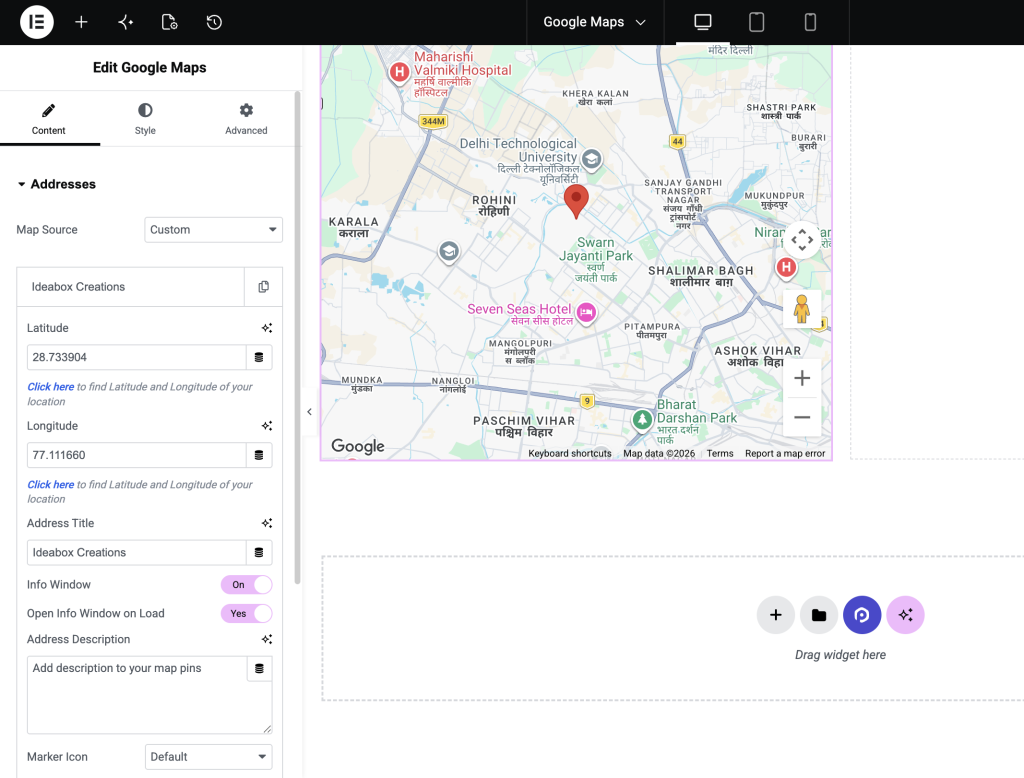
- Map Source: This option lets you choose where the map location data will come from: Custom or ACF Google Map Field.
If you're setting up the widget for the first time, we recommend following our detailed guide on How to Set Up Google Maps Widget before configuring the location settings.
Custom#
Select Custom to manually enter a location. When selected, the following fields become available:
- Latitude: Enter the latitude coordinate of the location you want to display.
- Longitude: Enter the longitude coordinate of the location.
- Address Title: Add a title for the selected location.
- Enable Info Window: Enable this option to display an information popup when users click the map marker.
- Marker Icon: Choose the icon used for the map marker: Default or Custom
ACF Google Map Field#
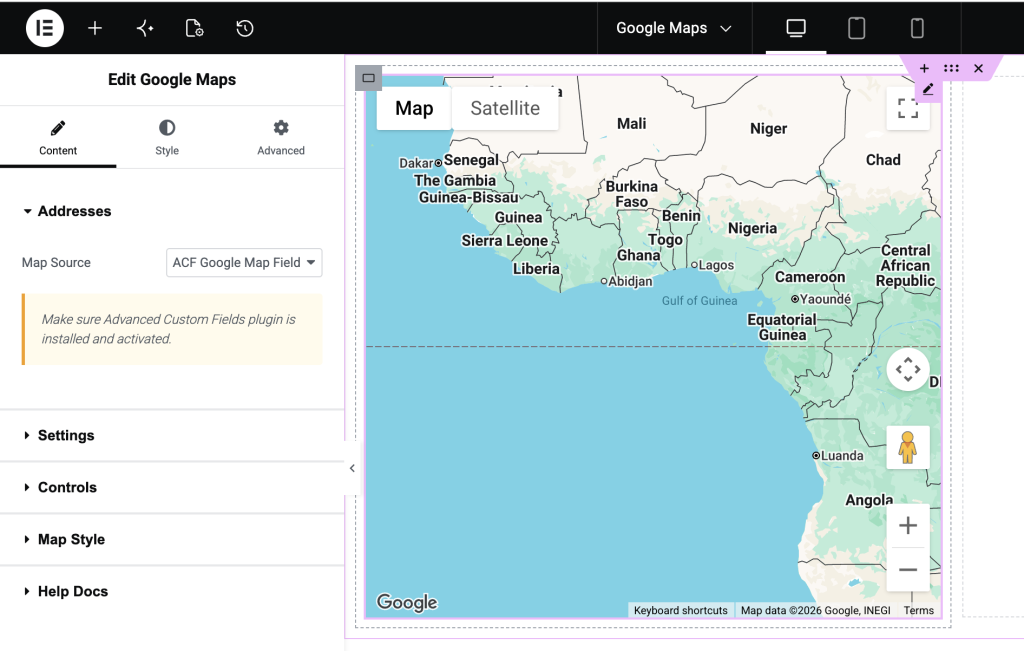
If your website uses the Advanced Custom Fields (ACF) plugin, you can dynamically pull location data from an ACF Google Map field.
Settings#
Settings section allows you to control the overall behavior and appearance of the map.
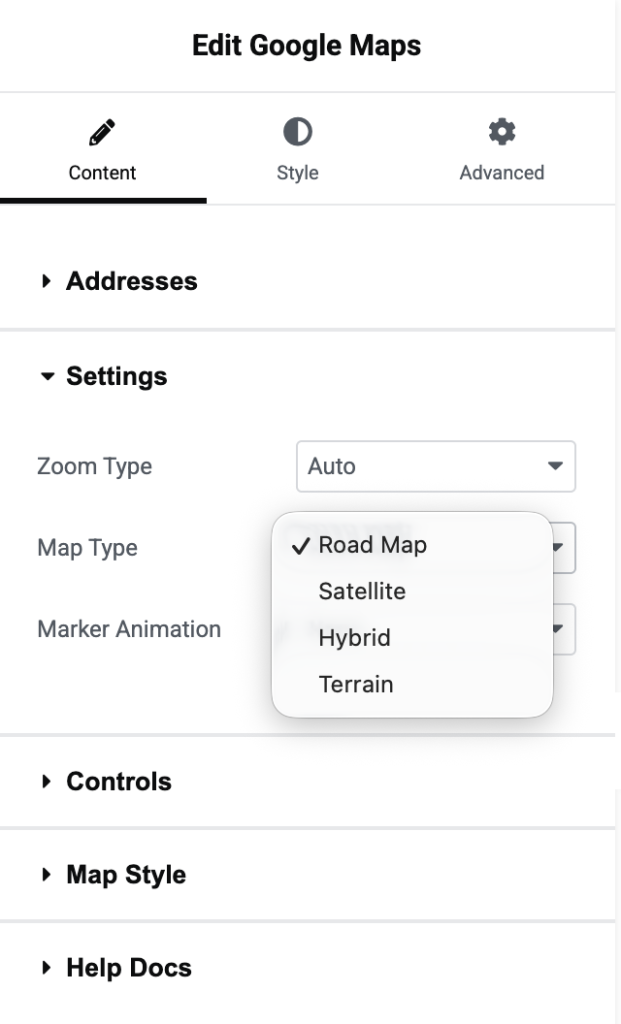
- Zoom Type: Choose how the map zoom level is managed. Available options: Custom or Auto
- Map Zoom: This option appears when Custom Zoom Type is selected. Use the slider to set the map's zoom level.
- Map Type: Choose the visual display mode of the map. Available options:
- Road Map
- Satellite
- Hybrid
- Terrain
- Marker Animation: Add animation effects to map markers from None, Drop, or Bounce.
Controls#
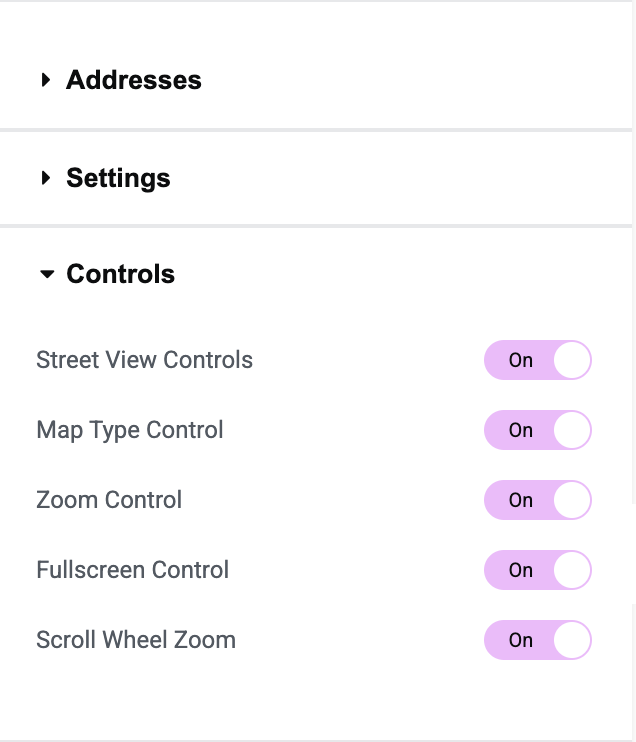
Controls section lets you enable or disable various Google Maps navigation controls.
- Street View Controls: Enable this option to allow visitors to access Google Street View directly from the map.
- Map Type Control: Displays the map type switcher, allowing users to switch between available map views.
- Zoom Control: Adds zoom-in and zoom-out buttons to the map interface.
- Fullscreen Control: Allows visitors to expand the map to full screen for better viewing.
- Scroll Wheel Zoom: Enable this option to allow visitors to zoom the map using their mouse wheel. Disable it to prevent accidental zooming while scrolling the page.
Map Style#
Map Style section allows you to customize the map's overall appearance.
- Map Theme: Choose from several predefined Google Maps themes.
Available options: Standard, Silver, Retro Dark, Night, Aubergine or Custom
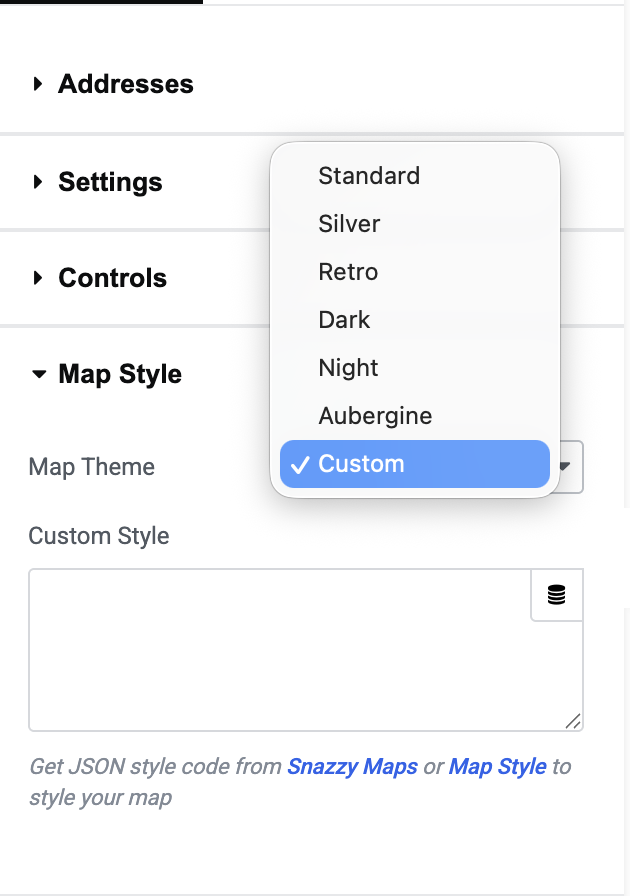
Need help creating a custom map style? Check out our guide on How to Add Custom Style to the PowerPack Google Maps Widget for step-by-step instructions.
Style Tab of the Google Maps Widget#
Style Tab allows you to customize the appearance of the Google Map and Info Window to match your website design. You can control the map dimensions, alignment, spacing, and typography settings directly from the Elementor editor.
Style Tab includes the following sections:
- Map
- Info Window
Let's explore each section in detail.
Map#
Map section contains options that help you control the size and positioning of the map on your page.
- Alignment: Choose the alignment of the Google Maps widget within its container.
- Width: Use this option to adjust the map's width.
- Height: This option lets you set the map's height.
Info Window#
Info Window section lets you customize the popup that appears when visitors click on a map marker.
These styling options are available when the Enable Info Window option is enabled in the Content >> Addresses section.
- Info Window Max Width: Set the maximum width of the Info Window popup.
- Padding: Adjust the inner spacing of the Info Window.
- Title: Customize the appearance of the Info Window title.
- Color: Select a color for the title text.
- Bottom Spacing: Control the space between the title and the description text.
- Typography: Customize the title typography settings, including: Font Family, Font Size, Font Weight, Text Transform, Line Height, Letter Spacing
- Description: Customize the appearance of the description text displayed inside the Info Window.
- Color: Choose the text color for the description.
- Typography: Adjust the description text's typography settings.
Wrapping Up!#
This was the complete overview of the Google Maps Widget for Elementor. Using the available settings, controls, and map styles, you can easily create interactive and visually engaging maps for your website visitors.
We hope this guide helps you get started with the Google Maps Widget and make the most of its features.