Breadcrumbs Widget for Elementor helps you display a navigation trail that shows visitors their current location on your website. It improves the user experience by making navigation easier and helps visitors quickly return to previous pages or categories.
Widget supports multiple popular SEO and breadcrumb plugins, allowing you to display breadcrumbs generated by your preferred solution directly inside Elementor layouts.
Getting Started: Using the Breadcrumbs Widget#
Follow these steps to add the Breadcrumbs Widget to your page:
- Open the page where you want to add the Breadcrumbs Widget in the Elementor editor.
- In the widgets panel, search for Breadcrumbs.
- Drag and drop the Breadcrumbs Widget onto your page.
- Once the widget is added, you'll see two main tabs in the left panel:
- Content
- Style
Let's explore the widget's available settings.
Content Tab#
Content tab includes the following sections:
- Breadcrumbs
- Separator
Breadcrumbs#
This section allows you to choose a breadcrumb source and configure breadcrumb settings.
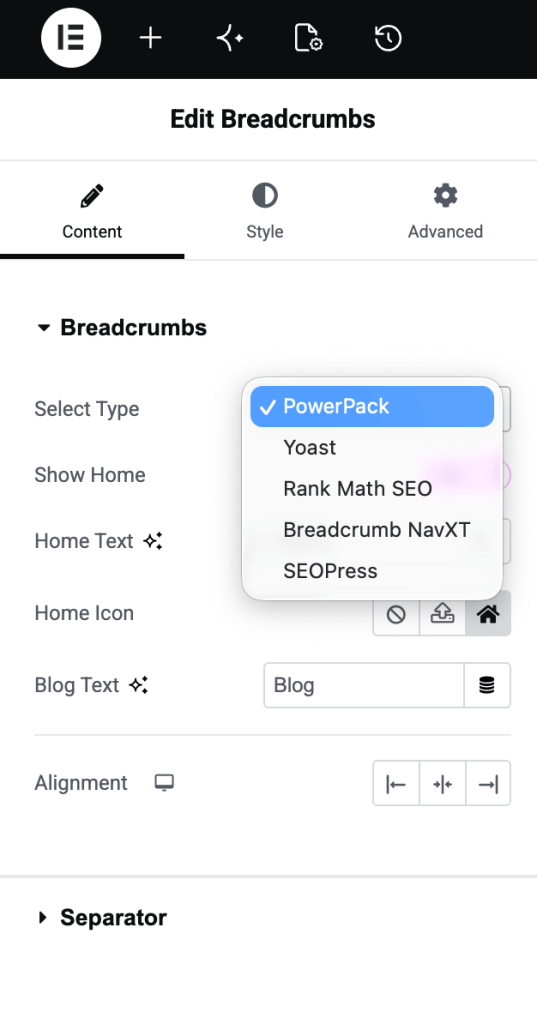
Select Breadcrumb Type
Choose breadcrumb type from the following options:
- PowerPack (Default)
- Yoast SEO
- Rank Math SEO
- Breadcrumb NavXT
- SEOPress
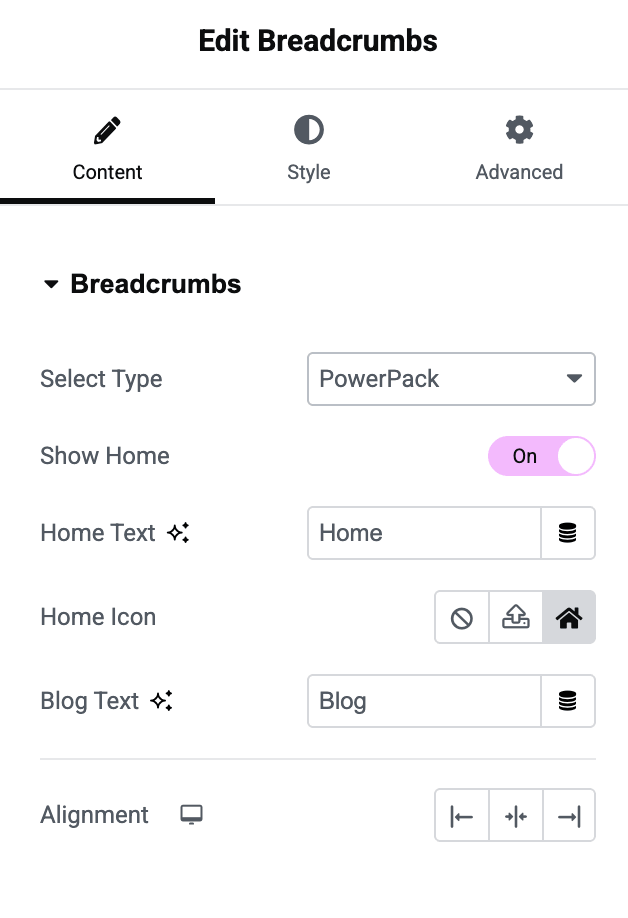
Customization Options for PowerPack Breadcrumbs
When PowerPack is selected as a breadcrumb type, additional customization options become available.
- Show Home: Enable or disable the home link in the breadcrumb trail.
- Home Text: Change text displayed for home link.
- Home Icon: Select an icon to display alongside the home link.
- Blog Text: Customize text used for the blog page link.
- Alignment: Adjust breadcrumb alignment according to your design requirements.
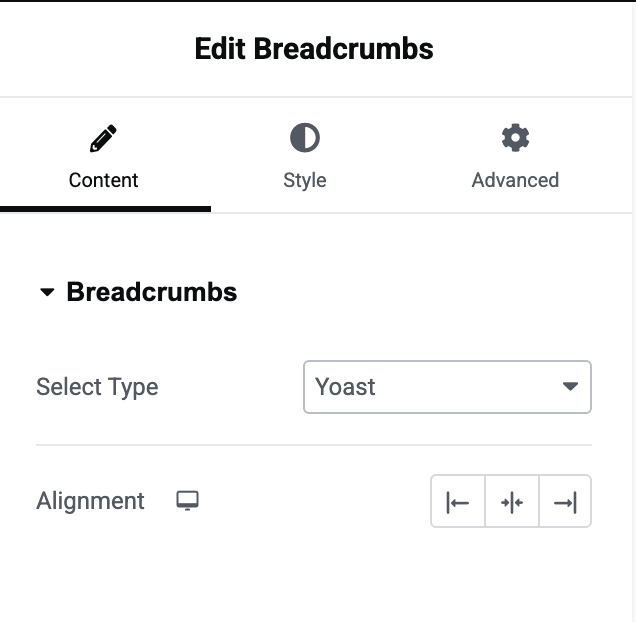
Customization Options for Other Breadcrumb Types
When using:
- Yoast SEO
- Rank Math SEO
- Breadcrumb NavXT
- SEOPress
Only the Alignment option can be customized, as the breadcrumb structure is generated by the selected plugin.
Separator#
Separator section allows you to control how breadcrumb items are separated.
- Separator Type: Choose a separator style from the following options:
- Icon
- Text
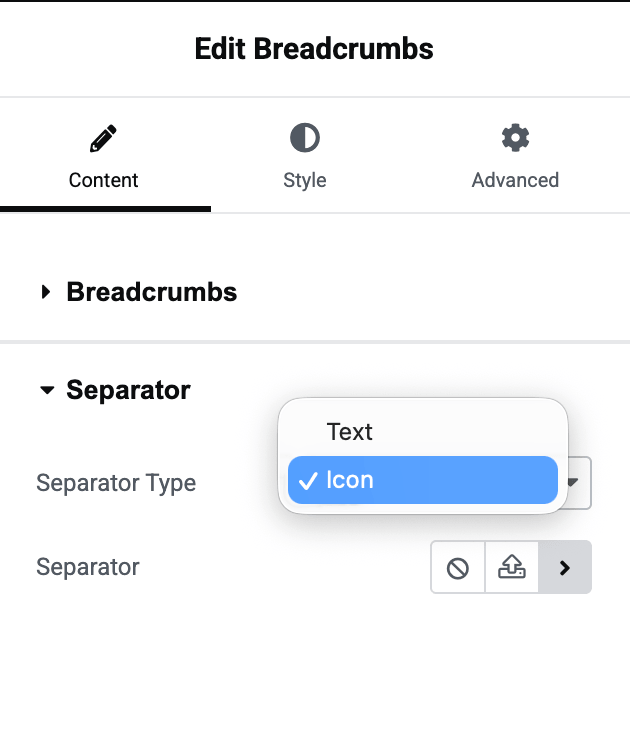
Select an icon separator for a more visual appearance, or use a custom text separator that aligns with your website design.
Style Tab#
Style tab provides various styling options to help you match breadcrumbs to your website design. You can customize the following elements:
Breadcrumb Items#
Style individual breadcrumb links by adjusting:
- Text color
- Typography
- Spacing
Separators#
Customize separators between breadcrumb items, including:
- Color
- Size
- Style
Current Item#
Highlight the current page in the breadcrumb trail to improve visibility and user orientation. Available styling options help you distinguish active breadcrumb items from remaining links.
Wrapping Up!#
Breadcrumbs Widget makes it easy to add clean, user-friendly navigation trails to Elementor pages. With support for popular SEO plugins and flexible styling controls, you can create breadcrumbs that perfectly match your website's design while improving the navigation experience for visitors.
We hope this overview helps you get started with the Breadcrumbs Widget quickly and easily.